#MoM2025 W19 | Inside the 12%: The Landscape of Asian Restaurants | Tableau Public

1. Dataset Origin
This visualization was created for #MakeoverMonday 2025 Week 19 challenge, using a dataset that shows the percentage of Asian restaurants among all U.S. restaurants.
To construct the radial bar shape, I also added a supporting dataset with values from 1 to 401. These values were used to draw smooth curved bars as polygons in a circular layout.
Main source: https://data.world/makeovermonday/2025-w19-asian-restaurants-in-the-us
Supplemental data: Manually generated sequence from 1 to 401 for radial bar pathing
2. Why this chart type?
I chose a donut chart to highlight one key point:
Asian restaurants make up 12% of all U.S. restaurants.
To drill down into that 12%, I used a radial waterfall-style chart to show how much each category contributes.
I thought this would be a fun and unique way to visualize the variety of Asian restaurants.
3. Data Preparation
The original dataset had two sheets:
1)The share of Asian restaurants among all U.S. restaurants
2)To drill down into Asian restaurant types
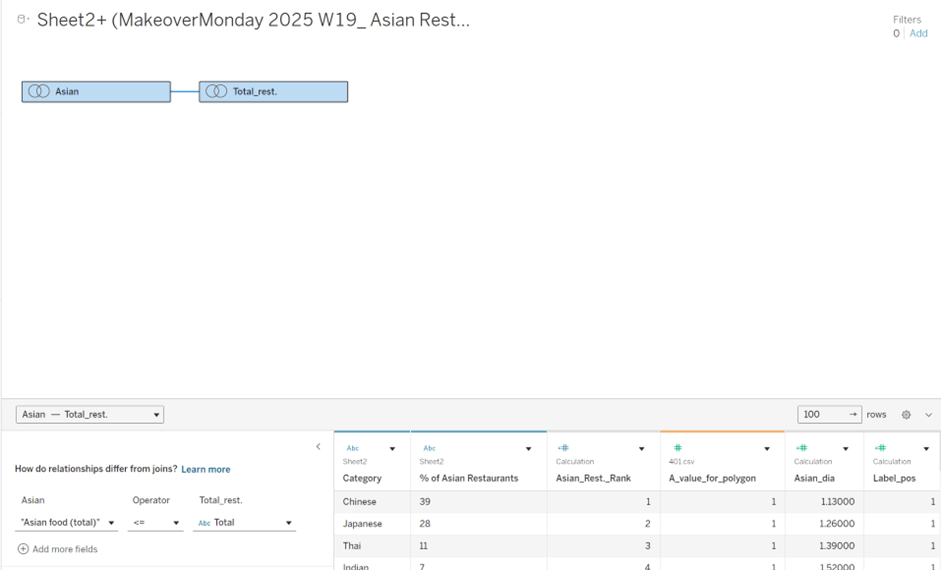
I joined these two sheets in Tableau by matching the "Asian food (total)" category from sheet 1 and creating a calculated field with the same label in sheet 2.
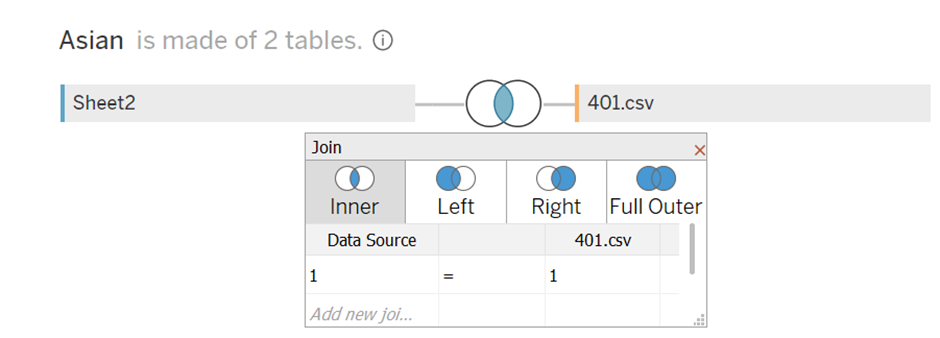
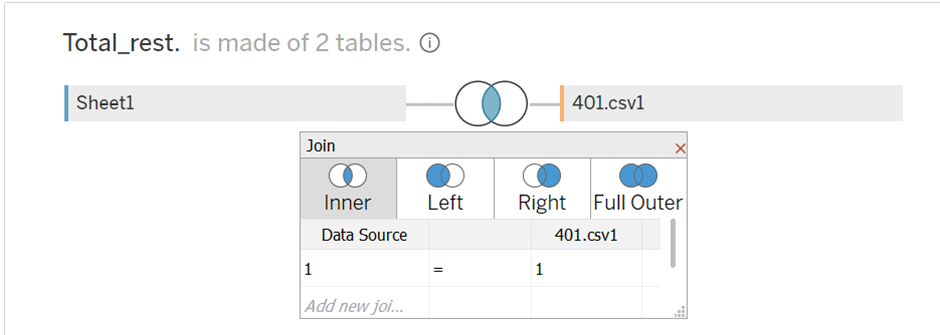
To draw the donut and curved bars, I also used a helper table (401.csv) containing values from 1 to 401. This table was inner joined with both sheets.
4. How the Chart Was Built
4.1 Drawing the Outer Circle

To create the donut shape, I used two MAKEPOINT calculations:
1)A thin ring to display the full circle
2)A thicker segment to highlight the 12% portion occupied by Asian restaurants
Both are based on polar coordinates, using the following formula:
| MAKEPOINT(diameter * SIN(degree), diameter * COS(degree)) |
Step 1: Thin Full Circle
I created 401 points using a helper table ([T_value_for_polygon] ranging from 1 to 401) and defined the angle and radius as follows:
[Total_deg_circle]
| 2 * PI() * ( IF [T_value_for_polygon] <= 200 THEN [T_value_for_polygon] / 200 ELSE (200 - ([T_value_for_polygon] - 201)) / 200 END ) |
[Total_dia_circle]
| IF [T_value_for_polygon] <= 200 THEN 0.9025 ELSE 0.8925 END |
[MP_TOTAL_Circle]
| MAKEPOINT([Total_dia_circle] * SIN([Total_deg_circle]), [Total_dia_circle] * COS([Total_deg_circle])) |

After placing [MP_TOTAL_Circle] on the Detail shelf:
1)Change the mark type to Polygon
2)Drag [T_value_for_polygon] to the Path shelf (as a dimension)
This creates a smooth, closed ring by connecting all the points sequentially.
Step 2: Thick Highlight for Asian Restaurants (12%)
To emphasize the 12% share of Asian restaurants, I adjusted the degree calculation using the percentage value:
[Total_deg_Asian]
| 2 * PI() * ( IF [T_value_for_polygon] <= 200 THEN [T_value_for_polygon] / 200 ELSE (200 - ([T_value_for_polygon] - 201)) / 200 END ) * ([% of All US Restaurants] / 100) |
[Total_dia_Asian]
| IF [T_value_for_polygon] <= 200 THEN 1 ELSE 0.8 END |
[MP_TOTAL_Asian]
| MAKEPOINT([Total_dia_Asian] * SIN([Total_deg_Asian]), [Total_dia_Asian] * COS([Total_deg_Asian])) |
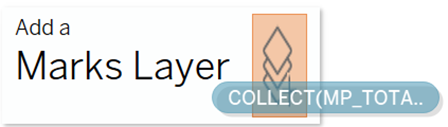
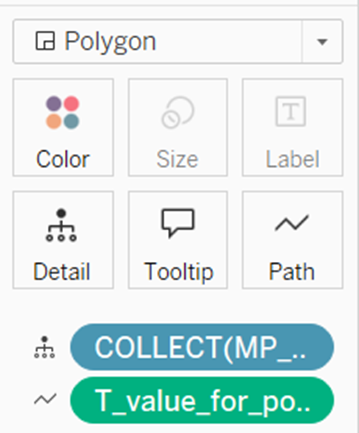
To build this layer:
1)Add [MP_TOTAL_Asian] as add a Marks layer
2)Set the mark type to Polygon
3)Drag [T_value_for_polygon] to the Path shelf (dimension)
This results in a bold, curved segment that visually emphasizes the presence of Asian restaurants within the overall restaurant landscape.
To add category labels (e.g., “Asian Food”), you can also use MAKEPOINT to position text precisely on the map.

Additionally, if you want to disable selection, check “Disable Selection” for each layer.
4.2 Building the Radial Waterfall (Linear Bar Chart)

To drill down the 12% segment into categories of Asian restaurants, I built a radial waterfall-style chart using MAKEPOINT. This required calculating the accumulated share (running sum) for each category to correctly place the bars in order.
Step 1: Assign Category Rank & Calculate the Accumulated Share (Running Sum)
Since MAKEPOINT calculations don’t support table calculations like INDEX() or RUNNING_SUM() directly, I manually assigned each restaurant category a rank (similar to an index) and used that to compute the running sum step by step. This cumulative value was then used to calculate the correct angle for each bar segment in the radial layout.
[Asian_Rest._Rank]
| CASE [Category] WHEN "Chinese" THEN 1 WHEN "Japanese" THEN 2 WHEN "Thai" THEN 3 WHEN "Indian" THEN 4 WHEN "Vietnamese" THEN 5 WHEN "Korean" THEN 6 WHEN "Filipino" THEN 7 WHEN "Pakistani" THEN 8 WHEN "Mongolian" THEN 9 WHEN "Burmese" THEN 10 END |
[Runningsum_Asian_Rest._before]
| CASE [Asian_Rest._Rank] WHEN 1 THEN 0 WHEN 2 THEN {MAX(IF [Asian_Rest._Rank]=1 THEN [% of Asian Restaurants to number] END)} WHEN 3 THEN {MAX(IF [Asian_Rest._Rank]=1 THEN [% of Asian Restaurants to number] END)}+ {MAX(IF [Asian_Rest._Rank]=2 THEN [% of Asian Restaurants to number] END)} WHEN 4 THEN {MAX(IF [Asian_Rest._Rank]=1 THEN [% of Asian Restaurants to number] END)}+ {MAX(IF [Asian_Rest._Rank]=2 THEN [% of Asian Restaurants to number] END)}+ {MAX(IF [Asian_Rest._Rank]=3 THEN [% of Asian Restaurants to number] END)} WHEN 5 THEN {MAX(IF [Asian_Rest._Rank]=1 THEN [% of Asian Restaurants to number] END)}+ {MAX(IF [Asian_Rest._Rank]=2 THEN [% of Asian Restaurants to number] END)}+ {MAX(IF [Asian_Rest._Rank]=3 THEN [% of Asian Restaurants to number] END)}+ {MAX(IF [Asian_Rest._Rank]=4 THEN [% of Asian Restaurants to number] END)} WHEN 6 THEN {MAX(IF [Asian_Rest._Rank]=1 THEN [% of Asian Restaurants to number] END)}+ {MAX(IF [Asian_Rest._Rank]=2 THEN [% of Asian Restaurants to number] END)}+ {MAX(IF [Asian_Rest._Rank]=3 THEN [% of Asian Restaurants to number] END)}+ {MAX(IF [Asian_Rest._Rank]=4 THEN [% of Asian Restaurants to number] END)}+ {MAX(IF [Asian_Rest._Rank]=5 THEN [% of Asian Restaurants to number] END)} WHEN 7 THEN {MAX(IF [Asian_Rest._Rank]=1 THEN [% of Asian Restaurants to number] END)}+ {MAX(IF [Asian_Rest._Rank]=2 THEN [% of Asian Restaurants to number] END)}+ {MAX(IF [Asian_Rest._Rank]=3 THEN [% of Asian Restaurants to number] END)}+ {MAX(IF [Asian_Rest._Rank]=4 THEN [% of Asian Restaurants to number] END)}+ {MAX(IF [Asian_Rest._Rank]=5 THEN [% of Asian Restaurants to number] END)}+ {MAX(IF [Asian_Rest._Rank]=6 THEN [% of Asian Restaurants to number] END)} WHEN 8 THEN {MAX(IF [Asian_Rest._Rank]=1 THEN [% of Asian Restaurants to number] END)}+ {MAX(IF [Asian_Rest._Rank]=2 THEN [% of Asian Restaurants to number] END)}+ {MAX(IF [Asian_Rest._Rank]=3 THEN [% of Asian Restaurants to number] END)}+ {MAX(IF [Asian_Rest._Rank]=4 THEN [% of Asian Restaurants to number] END)}+ {MAX(IF [Asian_Rest._Rank]=5 THEN [% of Asian Restaurants to number] END)}+ {MAX(IF [Asian_Rest._Rank]=6 THEN [% of Asian Restaurants to number] END)}+ {MAX(IF [Asian_Rest._Rank]=7 THEN [% of Asian Restaurants to number] END)} WHEN 9 THEN {MAX(IF [Asian_Rest._Rank]=1 THEN [% of Asian Restaurants to number] END)}+ {MAX(IF [Asian_Rest._Rank]=2 THEN [% of Asian Restaurants to number] END)}+ {MAX(IF [Asian_Rest._Rank]=3 THEN [% of Asian Restaurants to number] END)}+ {MAX(IF [Asian_Rest._Rank]=4 THEN [% of Asian Restaurants to number] END)}+ {MAX(IF [Asian_Rest._Rank]=5 THEN [% of Asian Restaurants to number] END)}+ {MAX(IF [Asian_Rest._Rank]=6 THEN [% of Asian Restaurants to number] END)}+ {MAX(IF [Asian_Rest._Rank]=7 THEN [% of Asian Restaurants to number] END)}+ {MAX(IF [Asian_Rest._Rank]=8 THEN [% of Asian Restaurants to number] END)} WHEN 10 THEN {MAX(IF [Asian_Rest._Rank]=1 THEN [% of Asian Restaurants to number] END)}+ {MAX(IF [Asian_Rest._Rank]=2 THEN [% of Asian Restaurants to number] END)}+ {MAX(IF [Asian_Rest._Rank]=3 THEN [% of Asian Restaurants to number] END)}+ {MAX(IF [Asian_Rest._Rank]=4 THEN [% of Asian Restaurants to number] END)}+ {MAX(IF [Asian_Rest._Rank]=5 THEN [% of Asian Restaurants to number] END)}+ {MAX(IF [Asian_Rest._Rank]=6 THEN [% of Asian Restaurants to number] END)}+ {MAX(IF [Asian_Rest._Rank]=7 THEN [% of Asian Restaurants to number] END)}+ {MAX(IF [Asian_Rest._Rank]=8 THEN [% of Asian Restaurants to number] END)}+ {MAX(IF [Asian_Rest._Rank]=9 THEN [% of Asian Restaurants to number] END)} END |
Step 2: Define Total Angle Span (12%)
[Total_deg_A_MAX]
| 2 * PI() * ([% of All US Restaurants] / 100) |
The [Total_deg_A_MAX] field defines the total angle span representing the full 12% share of Asian restaurants.
Although this value isn't explicitly filtered in the calculation, it works as intended because in the data preparation step, the row for "Asian food (total)" was already joined with each category. This ensures that the value is automatically associated and used correctly during the angle calculation.
Step 3: Compute Angles and Radius per Category
Each bar's angle and its base position were calculated using a helper table ([A_value_for_polygon] from 1 to 401) and the running total.
Angle within segment (bar width):
[Asian_deg]
| [Total_deg_A_MAX] * ( IF [A_value_for_polygon] <= 200 THEN [A_value_for_polygon] / 200 ELSE (200 - ([A_value_for_polygon] - 201)) / 200 END ) * [% of Asian Restaurants to number] |
Starting angle for each bar (cumulative base):
[Asian_deg_before]
| [Total_deg_A_MAX] * ( IF [A_value_for_polygon] <= 200 THEN [A_value_for_polygon] / 200 ELSE (200 - ([A_value_for_polygon] - 201)) / 200 END ) * [Runningsum_Asian_Rest._before] |
Final angle position:
[Asian_deg_waterfall]
| [Asian_deg_before] + [Asian_deg] |
Radius increases by category rank (spread out effect):
[Asian_dia]
| IF [A_value_for_polygon] <= 200 THEN 1 + [between_size] * ([Asian_Rest._Rank] / 10) ELSE 1 + [between_size] * ([Asian_Rest._Rank] / 10) - 0.1 END |
[between_size] is a float parameter (I set it to 1.3).
Step 4: Create MAKEPOINT for Bars
Use the values above to generate the points for polygon shapes:
[MP_ASIAN]
| MAKEPOINT([Asian_dia] * SIN([Asian_deg_waterfall]), [Asian_dia] * COS([Asian_deg_waterfall])) |
1)Add a layer using [MP_ASIAN]
2)Set mark type to Polygon
3)Place [A_value_for_polygon] on Path
4)Add [Category] to Color
Step 5: Label Below Each Bar
For clean labeling, place it at the start of each bar:
[MP_ASIAN_Before]
| MAKEPOINT([Asian_dia] * SIN([Asian_deg_before]), [Asian_dia] * COS([Asian_deg_before])) |
1)Add a new layer using [MP_ASIAN_Before]
2)Mark type: Line
3)Add [Category] and [% of Asian Restaurants] to Label
Use this to limit label to final position only:
[Label_pos]
| IF [A_value_for_polygon] <= 200 THEN [A_value_for_polygon] ELSE 0 END |
→ Drag [Label_pos] to Path
This technique ensures the label appears only once per category at the outer end of the bar, looking like a clean label below the curved bar.
Step 6: Final Touches
1)Adjust line color and opacity to hide connector lines if needed
2)Style the polygon colors as preferred for clarity or aesthetics
4.3 Drawing the Outline

To complete the donut’s appearance, I added outlines using both MAKELINE and MAKEPOINT.
Step 1: Draw Inner and Outer Lines
I created two straight lines to connect the center to the inner and outer radius of the donut segment:
[ML_for_0]
| MAKELINE(MAKEPOINT(0, (1 - 0.2)), MAKEPOINT(0, (1 + [between_size]))) |
[ML_for_deg]
| MAKELINE( MAKEPOINT(0.8 * SIN([Total_deg_A_MAX]), (1 - 0.2) * COS([Total_deg_A_MAX])), MAKEPOINT((1 + [between_size]) * SIN([Total_deg_A_MAX]), (1 + [between_size]) * COS([Total_deg_A_MAX])) ) |
1)Set the mark type to Map.
2)Use a similar color as your donut segment to make the outline blend smoothly.
Step 2: Draw the Outer Curve
This is a curved line that outlines the donut’s outer edge:
[MP_ASIAN_Outline]
| MAKEPOINT((1 + [between_size]) * SIN([Total_deg_Asian]), (1 + [between_size]) * COS([Total_deg_Asian])) |
1)Add this as a new layer.
2)Set the mark type to Line.
3)Add [T_value_for_polygon] to the Path shelf to connect the points smoothly.
4)Match the color to your donut chart to keep visual consistency.
4.4 (Optional) Interactive Toggle Using Parameters
To make the chart expandable and collapsible, I used a parameter-based toggle. Curious how it works? Download my dashboard (.twbx) on Tableau Public and take a closer look under the hood!
4.5 Final Touches

After building all the components, just insert them into the dashboard and customize the layout and design — and you're done!
I call this style a Radial Waterfall Chart.
'Tableau' 카테고리의 다른 글
| Tableau 챌린지 사이트 모음 (8) | 2024.06.02 |
|---|---|
| Tableau LOD(Level of Detail, 세부 수준 식)에 관해서 (32) | 2024.05.26 |